
Postzmaker guide
Why WhatsApp images look blurry, and how to send them sharper
You made a crisp greeting and it arrived soft, with fuzzy letters. That is not your phone: messaging apps shrink photos to save data. Here is what happens, how to send the original, and how to design pictures that survive.
How to do it with Postzmaker
- Open the page of the occasion you need and prepare your picture in the quick editor, using a bold background and a short message.
- Pick the size on purpose: Square (1080x1080) for chats, Status / Story (1080x1920) for a WhatsApp status.
- To send it as a normal picture, tap ‘Send on WhatsApp’ on your phone. It arrives quickly, though the app may compress it.
- To send the original file, tap ‘Download’, then in WhatsApp attach the file as a Document instead of a Photo.
- For the best quality, open the picture in the full editor with ‘Open in the full editor’ and export it as PNG; choose JPG when you need a lighter file.
- Check the result on your own screen and, if you can, on someone else’s phone before sending it to a big group.
What really happens when you send a photo
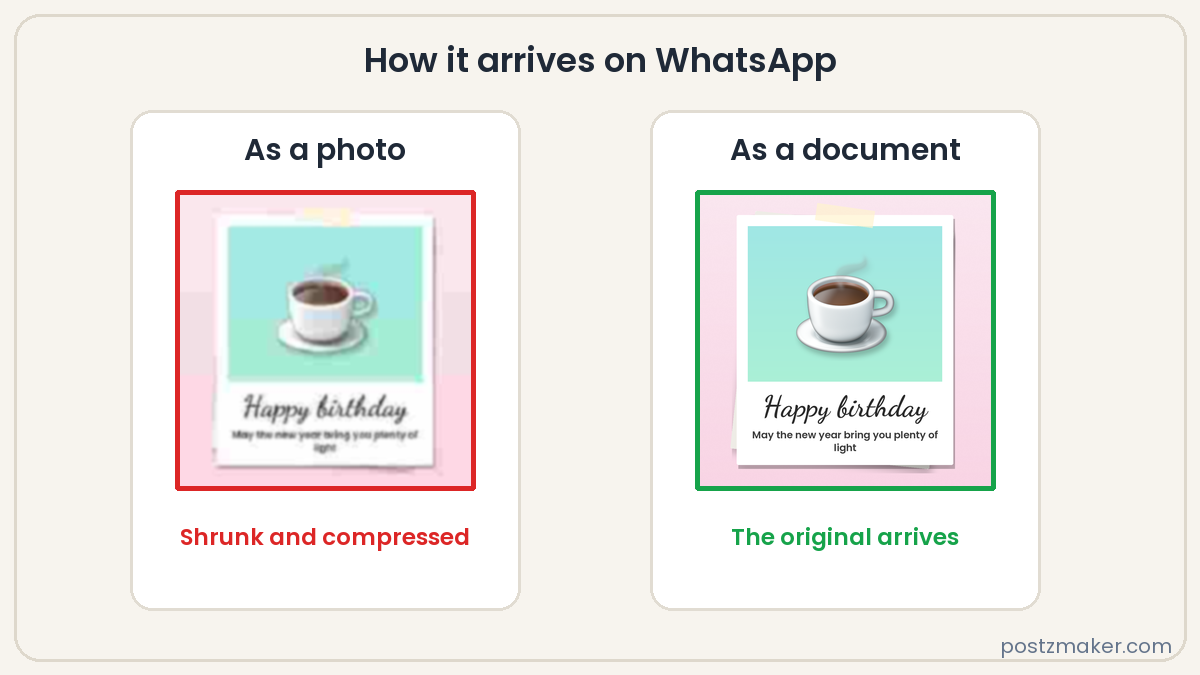
When you attach a picture as a normal photo, WhatsApp does not send the file you chose. It makes a smaller copy, with fewer pixels and stronger compression, and sends that instead. The goal is speed and lower data use, which matters on slow networks and limited plans. The side effect is a loss of sharpness.
For ordinary snapshots the loss goes unnoticed, because a landscape or a face hides compression well. Images with text and flat colors are different. The edges between letters and background are very visible, and compression creates small blurry halos around each letter. A greeting card is exactly the kind of image that shows the damage.
This is not a fault of your picture or a mistake on your side; it is a trade-off built into messaging apps. You can reduce the damage in two ways: by choosing how you send the file, and by designing the picture so that compression hurts less.
Sending as a photo or as a document
In WhatsApp you can attach a picture in two ways. The gallery option sends it as a photo, which the app compresses. The document option, found in the attachment menu, sends the file as it is, with no resizing. The person on the other side receives your original and can open it at full quality.
The document route has a downside. The picture arrives as a file, not as an image shown in the chat, so the person has to tap it to see it. For a casual morning greeting that is a lot of friction. Use it when quality matters: a printed invitation, a flyer, a design you want someone to save.
Recent versions of the app also show an HD option when you choose a photo. It allows a larger resolution, but the picture is still compressed, so the result is not the same as the original file. If you want to be sure the picture arrives untouched, the document option is the reliable way.
JPG, PNG, WebP and PDF: which file to choose
In the quick editor on an occasion page, the download is a JPG. JPG is light and works everywhere, which suits a chat. It is a lossy format, so small details can soften, which is fine for most greetings, where the letters are large.
In the full editor you can also export PNG, WebP and PDF. PNG keeps edges clean and gives the best quality for text, but the files are heavier. WebP is light and usually sharp, though some older apps may not display it. PDF is meant for printing, not for chats.
A good rule: use PNG when sharpness matters and you will send the file as a document; use JPG when you want a light file and will send it as a photo. For a print shop, choose PDF or PNG. And do not re-save a picture many times, because each lossy save loses a little more.
The right size for chats and for Status
A picture is clearest when its shape fits the place where it will be seen. For chats and feed posts, Square at 1080x1080 is a safe choice: large enough to stay readable, and it does not get cropped awkwardly. For a WhatsApp status, the vertical 1080x1920 format fills the phone screen.
If you upload a picture much larger than needed, the app reduces it anyway, so a huge file gives no better result and only takes longer to send. If you upload one much smaller, it gets stretched and looks blurry. The sizes offered by Postzmaker are chosen to avoid both problems.
Mind the shape, too. A horizontal picture like the 1200x630 format is meant for link previews and websites, and looks small in a phone chat. A vertical 1080x1350 works well for feeds. Picking the right format at the start is easier than fixing a crop afterwards.
Why Status pictures look even softer
Statuses are shown full screen, so every weakness is magnified. A picture that looks acceptable in a small chat bubble can look soft when it fills the display. The app also compresses statuses, and its interface covers part of the picture at the top and the bottom.
To work with these limits, keep the important text in the middle of the screen, away from the top and bottom edges. Use large letters and avoid fine details near the edges. The Status / Story format adds a blurred background above and below, which fills the screen without stretching your picture.
If you plan a series of statuses, such as a weekly greeting, use the same layout every time, so people know where to look. A status disappears after 24 hours, so there is no need to polish every pixel; clear and large beats clever and tiny.
Designing text that survives compression
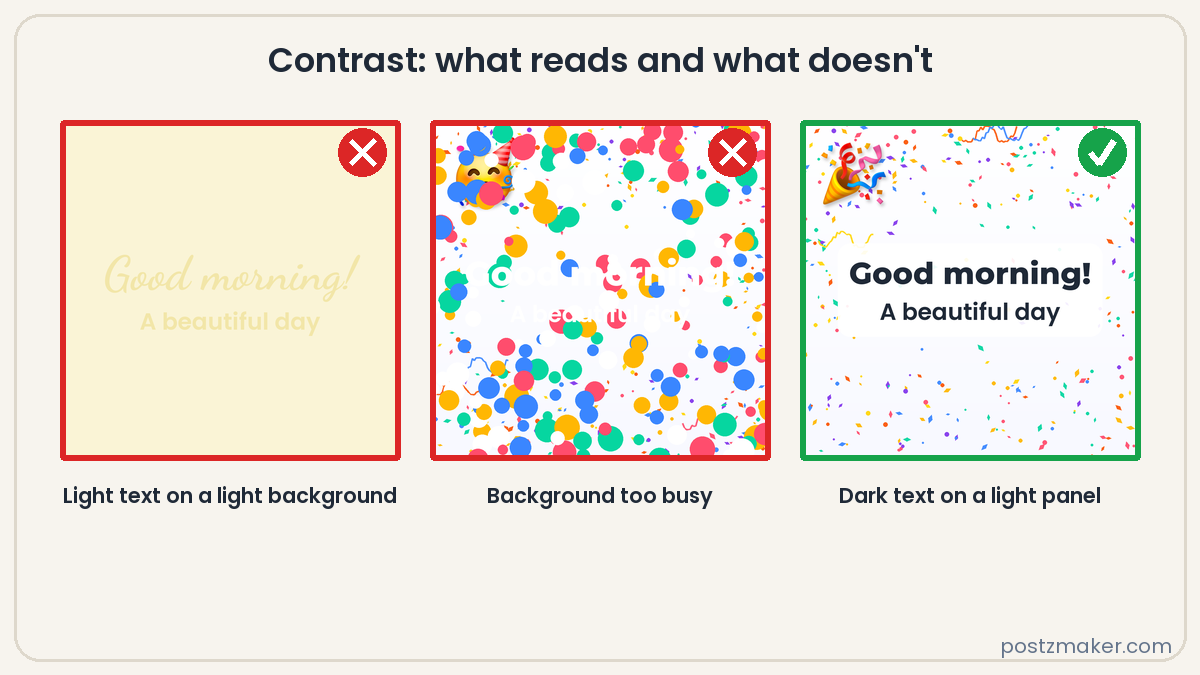
Since you cannot control the compression, design for it. Use large letters: a title should stay readable even if the picture is shown at half size. Thick, simple typefaces such as Montserrat, Poppins or Bebas Neue survive better than thin ones, and an elaborate script like Dancing Script is best kept for short words at big sizes.
Contrast is your best friend. Dark text on a light, plain area, or white text on a dark one, stays readable even when the picture is soft. Avoid thin letters on a busy background and light text on a pastel color. If a background is detailed, place the text on a calm part, or add a veil behind it in the full editor.
Leave space around the words. When compression blurs the edges of letters, crowded lines merge. Three short lines are better than six small ones. Skip very small text such as a date or a caption in the corner; if the message needs it, put it in the chat message instead.
Forwarding, saving and a last check
Each time a picture is forwarded as a photo it may be compressed again, so a picture that goes from one group to another and then to a third gradually loses quality. If a picture matters, keep the original file and send a fresh copy rather than forwarding a copy of a copy. If someone says your picture looks blurry, offer to send it as a document.
Save your originals. In the full editor, ‘Save draft’ and ‘My drafts’ keep your design on the same device and browser, but drafts live in the browser: if you clear the site data, they are gone. Keep the downloaded PNG or JPG in a folder on your phone or computer as well.
Before pressing send, take ten seconds. Is the text large and centered? Is the contrast strong? Open the picture at full size and then at the size it will have in a chat; if you can read it comfortably in both, it will survive. In large groups, one well-made picture is more likely to be read than a stream of ten.
Examples: what to use in each situation
- Daily good morning picture to a family group: Square 1080x1080, JPG, sent as a photo.
- Birthday card for a friend: Square, JPG, sent as a photo with a short personal message.
- WhatsApp status with a greeting: Status / Story 1080x1920, large title in the middle.
- Invitation you want people to save: PNG from the full editor, sent as a document.
- Flyer you will print: PDF export from the full editor, not sent in a chat.
- Picture for a grandmother with a small phone: very large title, dark text on a light panel.
- Picture for a very large group: JPG, light file, one picture only.
- Picture that arrived blurry: send the original again as a document.
Try it now



Frequently asked questions
Why do my pictures look worse on WhatsApp than on my phone?
Because the app sends a smaller, more compressed copy of any picture attached as a photo. This saves data and speeds up sending, but it softens details and makes text blurry. Pictures with letters are the most affected. Sending the file as a document, or designing with larger, bolder text, are the two ways to reduce the effect.
How do I send an image without losing quality?
Attach it as a document, not as a photo. Open the attachment menu in WhatsApp, choose Document, and select the picture file from your device. The recipient receives the original file. Keep in mind that it appears as a file, not as an image in the chat, so use it when quality matters more than convenience.
Is PNG better than JPG for WhatsApp?
PNG is sharper for text and flat colors, but the file is heavier. If you send it as a photo, the app converts and compresses it anyway, so the gain is small. If you send it as a document, PNG arrives untouched and is the best choice. For quick greetings in a chat, JPG is lighter and usually good enough.
Does the HD option fix the blur?
It helps a little, but it does not remove the problem. The HD option lets the app keep a larger resolution, yet the picture is still compressed on its way. For a greeting with small text, or anything someone will save or print, sending it as a document is the only way to be sure the original arrives.
Does Postzmaker change the quality of my picture?
The quick editor produces a JPG file in the size you choose, and the full editor can export PNG, JPG, WebP or PDF. How the image looks when it arrives depends on how you send it. The best way to keep full quality is to download the file and send it as a document from WhatsApp.
Will the picture be blurry for everyone?
It depends on how it was sent and on the recipient’s phone, screen and connection. Photos sent as pictures are compressed for everyone, but a clean design with large text looks good for most people. If someone tells you it looks soft, offer to send the original as a document.
More guides
- How to Make Good Morning Images for WhatsApp
- How to Make a Greeting Card Online for Free
- How to Make a WhatsApp Status with Text and a Background
- How to Choose the Right Background, Colors and Font
- How to Write Original Greeting Messages That Sound Like You
- How to Prepare a Different Image for Each Day of the Week
- Birthday messages for every person on your list
- Christmas and New Year wishes: what to write, to whom and when
- Valentine’s Day messages that are not clichés
- Mother’s Day and Father’s Day: dates, messages and ideas
- Workplace greetings: coworkers, clients and your boss
- How to Make Images Everyone Can Read
- Plan Your Year of Greeting Posts, Month by Month
- What to Write for Weddings, New Babies and Graduations
- Writing to Someone Who Is Unwell or Going Through a Hard Time
- How Holidays Differ Between Italy, Spain and English-Speaking Countries
- The Full Editor, Step by Step